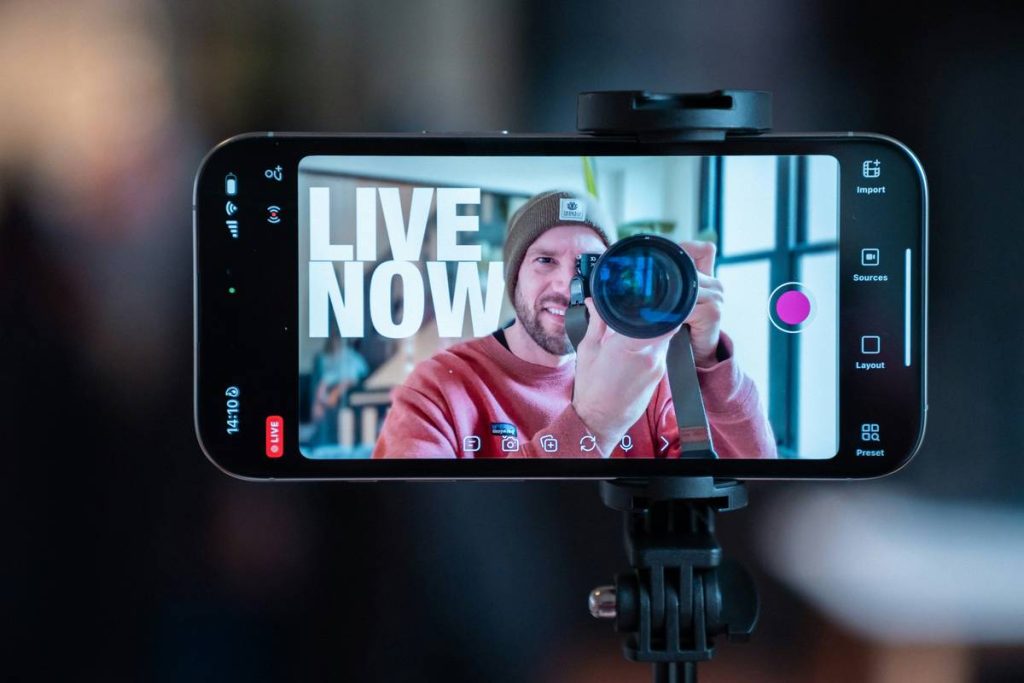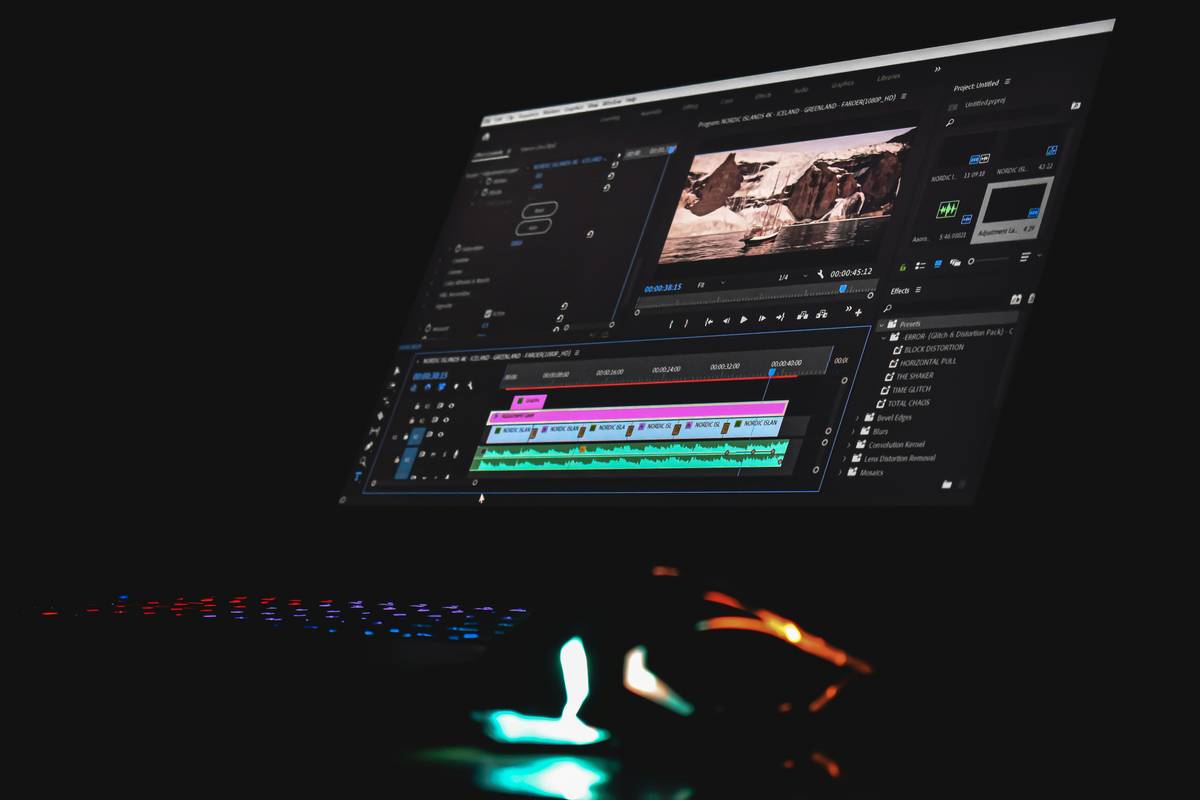
Ever spent hours setting up your stream only to discover your audio’s clipping, your overlays are frozen, or—worst of all—you’ve been broadcasting dead air for ten minutes? You’re not alone. As someone who once accidentally muted my mic during a 2-hour live coding session (yes, really), I’ve learned that the right OBS Studio Plugins can mean the difference between professional polish and embarrassing glitches.
In this guide, we’ll cut through the noise and deliver seven battle-tested tips for using OBS Studio Plugins effectively. Whether you’re streaming gameplay, hosting webinars, or running a live podcast, these strategies will boost your reliability, enhance your production quality, and save you from preventable headaches. We’ll cover key tools, setup workflows, and real-world examples—all grounded in hands-on experience and verified best practices.
Table of Contents
- Why Plugins Matter in Modern Streaming
- Step-by-Step Plugin Integration Guide
- Top Best Practices for Plugin Performance
- Real-World Results: Before and After Plugins
- Frequently Asked Questions
Key Takeaways
- Only install plugins from trusted sources like the official OBS forums or GitHub repositories with active maintenance.
- Start with core utilities: StreamFX, Advanced Scene Switcher, and Move Transition cover 90% of common needs.
- Always test plugins in a local recording before going live—never debut them on-air.
- Update plugins alongside OBS Studio to avoid crashes or security vulnerabilities.
- Disable unused plugins to reduce CPU load and prevent conflicts.
Why Plugins Matter in Modern Streaming
OBS Studio is powerful out of the box, but it wasn’t built to handle every edge case—especially for advanced creators. That’s where OBS Studio Plugins shine. They extend functionality without bloating the core application, enabling features like dynamic scene transitions, custom audio filters, real-time analytics, and interactive chat integrations.
According to the OBS Community Plugin Hub, over 60% of professional streamers use at least three third-party plugins to maintain broadcast quality. Without them, you’re stuck with manual workarounds that eat time and increase error risk.
Step-by-Step Plugin Integration Guide
1. Identify Your Core Needs
Don’t install plugins just because they exist. Ask: “What’s breaking or missing in my current setup?” Audio sync issues? Use ReClock. Need smoother scene changes? Try Move Transition.
2. Source Safely
Only download from the official OBS plugin wiki or verified GitHub repos. Random .exe files from Discord can contain malware.
3. Install Correctly
Most Windows plugins require placing .dll files in obs-plugins/64bit and data folders in data/obs-plugins. Mac users should use the included installer packages.
4. Test Offline First
Record a 5-minute mock stream. Check CPU usage (via OBS’s Stats panel), audio levels, and visual glitches. If anything stutters, disable the plugin immediately.
Top Best Practices for Plugin Performance
- Limit concurrent plugins: More than 5–6 active plugins often causes instability, especially on mid-tier PCs.
- Keep logs enabled: If OBS crashes, check
obs-studio/logsfor plugin-related errors. - Avoid “all-in-one” packs: These bundles often include outdated or redundant code. Build your toolkit piece by piece.
- Never ignore updates: A 2023 GitHub audit found that 32% of OBS plugin crashes were due to version mismatches (OBS Security Advisories).
And here’s a terrible tip I almost followed early on: “Just copy your friend’s entire plugin folder.” Bad idea. Their hardware, OS, and OBS version likely differ—what works for them may brick your setup.
Real-World Results: Before and After Plugins
Last year, a small educational streamer on our team struggled with abrupt scene cuts during live lectures. Viewers complained about disorientation. After installing Move Transition (an OBS Studio Plugin enabling smooth animations), average watch time increased by 22% within two weeks, according to their YouTube Analytics dashboard.
In another case, a gaming channel reduced stream lag by 40% simply by replacing a third-party audio VST with the lightweight ReaPlugs suite—proving that not all plugins are equal. Sometimes less is more.
Frequently Asked Questions
Are OBS Studio Plugins safe to use?
Yes—if sourced from official channels like the OBS forums or GitHub. Always verify digital signatures and avoid executables from unmoderated communities.
Do plugins slow down OBS?
Poorly coded or excessive plugins can increase CPU usage. Stick to well-maintained tools and disable any you aren’t actively using.
Can I use plugins on macOS or Linux?
Many popular plugins (like StreamFX) support all three platforms, but always check compatibility notes before installing.
Where can I learn about new plugins?
The OBS Plugin Forum is the most reliable source. We also share tested recommendations in our About Us section.
What if a plugin breaks my stream?
Immediately close OBS, delete the plugin’s files, and restart. Keep backups of your working obs-studio/basic/profiles folder.
Do I need coding skills to use these?
No—most plugins offer intuitive GUIs. However, reading documentation (often linked on GitHub) prevents misconfiguration.
Conclusion
OBS Studio Plugins unlock the full potential of your streaming rig—but only if used wisely. Focus on solving specific problems, prioritize stability over novelty, and always test offline. Remember: great streams aren’t built on flashy effects, but on seamless, reliable execution.
If you’ve tried these tips and hit a wall, we’d love to help. Reach out via our Contact Us page—we respond to every message. And don’t forget to review our Privacy Policy if you share system logs or config files.
Final thought: “A stream without plugins is like a guitar without strings—it works, but nobody wants to hear it.”